This isn't the important, in-depth blog post I'd hoped to start with, but is a subject which has come up in discussions a couple of times recently, so thought it worth posting.
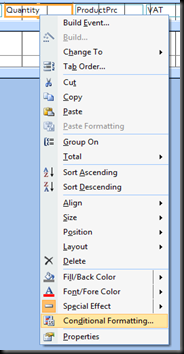
Access 2007 allows you to apply conditional formatting to reports. This means you can highlight one field, either because of it's value, or the values within in other fields. You do this by right clicking the relevant field and selecting ‘Conditional Formatting’.
The next step is to choose which field(s) you want the formatting to rely upon. To do this choose either ‘Field Value Is’ or ‘Expression Is’. The first choice makes the conditional format dependant on the selected field, the second allows you to enter a formula which can then look at other fields.
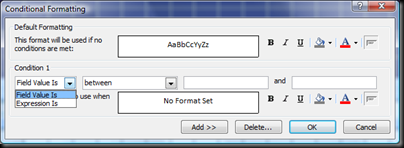
In the example that follows I have chosen to highlight the ‘Product’ field where the ‘Quantity’ is higher then 2 using ‘Expression Is’.
 When using IF statements, Access, unlike Excel wants to see IIF.
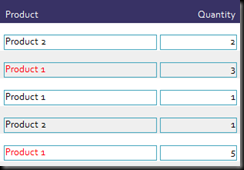
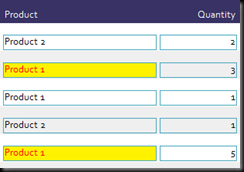
And now for the reason I’m posting this. When choosing to change the back colour you need to ensure that the control’s (Label, TextBox etc) back style is set to ‘Normal’. When creating a report the default back style is ‘Transparent’, this means the back colour format is not shown.

Below are two pics, the first where the control’s back style is ‘Transparent’.
And the second after changing the back style to ‘Normal.
Well, I hope that proves useful to someone, if you have any comments or questions let us know.

 conditional formatting, in Office 2007 this is to the right on the home tab.


