This is an update to the code supplied here. The previous article enabled you to send an email though Outlook using early binding. The code below uses late binding, this means you do not need to worry about Outlook versions.
As before it includes the subject and message body fields as well as the To, Cc and Bcc fields within a standard email format.
The code could easily be changed to loop through arrays or collections of values for many of these fields.
Private Sub SendOutlookEmail()
'-- Creates and sends a new e-mail message with Outlook --
' These are members of the referenced object model which _
are unavailable due to late binding. They have been _
replaced with the numbers they represent
Const olMailItem As Integer = 0
Const olTo As Integer = 1
Const olCc As Integer = 2
Dim oOutlook As Object 'Outlook Application
Dim oMailMsg As Object 'Outlook MailItem
Dim oRecipient As Object 'Outlook Recipient
Dim oRecipType As Object 'Outlook Recipient Type
On Error GoTo ErrTrap
' Create the Outlook session
Set oOutlook = CreateObject("Outlook.Application")
' Create the message
Set oMailMsg = oOutlook.CreateItem(olMailItem)
With oMailMsg
' Request a receipt ?
.ReadReceiptRequested = False
' Keep copy in 'Sent Items' ?
.DeleteAfterSubmit = False
' Your email address or 'team mailbox' address
.SentOnBehalfOfName = "YourEmail@Address.com"
' Message subject
.Subject = "Subject Here"
' Add message body
.Body = "Email Message Here"
'Add 'To' recipient(s)
Set oRecipient = .Recipients.Add _
("SomeoneElses@EmailAddress.com; AnotherPerson@Email.com")
oRecipient.Type = olTo
'Add another 'To' recipient
Set oRecipient = .Recipients.Add _
("SomeoneElses@EmailAddress.com")
oRecipient.Type = olTo
' Add 'Cc' recipient(s)
Set oRecipient = .Recipients.Add _
("SomeoneElses@EmailAddress.com")
oRecipient.Type = olCc
' Loop through an array to attach files
For l = 0 To UBound(varFile)
If Not IsEmpty(varFile(l)) Then
.Attachments.Add varFile(l)
End If
Next l
' Display to user or Send email
'.Send
.Display
End With
ErrTrap:
Set oOutlook = Nothing
Set oMailMsg = Nothing
Set oRecipient = Nothing
Set oRecipType = Nothing
Select Case Err.Number
Case Is = 0
' All okay, continue
Case Is = -284147707
MsgBox "You have exceeded the storage limit on your mailbox. " _
& "Delete some mail from your mailbox or contact your " _
& "system administrator to adjust your storage limit." _
, vbInformation, "Error Message"
Case Else
MsgBox "An error has occured:" & vbCrLf & vbCrLf _
& Err.Number & " - " & Err.Description, "OutlookEmailFunction"
End Select
End Sub
As always, if you have any questions do let us know via the comments section.
Wednesday, 22 December 2010


Saturday, 18 December 2010
Lotus Notes Email using VBA
The code I’m sharing with you today will enable you to send an email using VBA through Lotus Notes. It uses late binding so you do not need to use references to Lotus Notes, which in turn means you do not need to worry about your users Lotus Notes version. I say this, though in practise this may not always be the case. Lotus Notes is often rather frustrating, as many users will testify :)
As well as the subject and message body the routine allows you to specify the To, Cc and Bcc fields within a standard email format.
The example below shows the code to attach a single file. This could easily be amended to loop through an array or collection of file addresses.
Sub SendAnEmailViaLotusNotes()Dim WS As Object
Dim Session As Object
Dim DB As Object
Dim uiDB As Object
Dim NotesAttach As Object
Dim NotesDoc As Object
Dim RichTextBody As Object
Dim RichTextAttachment As Object
Dim StyleBold As Object
Dim StyleNorm As Object
Dim StyleUnderline As Object
Dim StyleFont10 As Object
Dim Server As String
Dim MailFile As String
Dim TheUser As String
Dim UserSig As String
Dim strEmailTo As String ' email To field
Dim strEmailCc As String ' email Cc field
Dim strEmailBcc As String ' email Bcc field
Dim strEmailSbj As String ' email Subject
Dim strEmailBdy As String ' email Body (message text)
Dim strEmailAtt As String ' email attachment
Application.DisplayAlerts = False ' turn off Excel alerts
On Error GoTo ErrorMsg ' on error goto ErrorMsg section...
' --- Set-up connection to Lotus Notes and Create Email object
Set WS = CreateObject("Notes.NotesUIWorkspace")
Set Session = CreateObject("Notes.NotesSession")
TheUser = Session.UserName
UserSig = Session.CommonUserName
Server = Session.GetEnvironmentString("MailServer", True)
MailFile = Session.GetEnvironmentString("MailFile", True)
Set DB = Session.GetDatabase(Server, MailFile)
Set uiDB = WS.CURRENTDATABASE
Set NotesDoc = DB.CreateDocument
Set RichTextBody = NotesDoc.CreateRichTextItem("Body")
' --- Set-up dist list, message and attachments
strEmailTo = ""
strEmailCc = ""
strEmailBcc = ""
strEmailSbj = ""
strEmailBdy = ""
strEmailAtt = ""
NotesDoc.SendTo = strEmailTo ' To...
NotesDoc.CopyTo = strEmailCc ' Cc...
NotesDoc.BlindCopyTo = strEmailBcc ' Bcc...
NotesDoc.Subject = strEmailSbj ' The subject
NotesDoc.Body = strEmailBdy ' Any text to be in the email
' Attach a file
If strEmailAtt <> "" Then
Set RichTextAttachment = NotesDoc.CreateRichTextItem("Attachment")
Set NotesAttach = RichTextAttachment.EmbedObject(1454, "", strEmailAtt)
End If
' --- Send the email / save the message in 'Sent' items
' False would not save the sent email to the sent items folder
NotesDoc.SAVEMESSAGEONSEND = True
' Not sure why, but false send the eamil ?
NotesDoc.SEND False
' --- Close connection to free memory
Set Session = Nothing
Set DB = Nothing
Set NotesAttach = Nothing
Set NotesDoc = Nothing
Set WS = Nothing
' Turn on Excel alerts
Application.DisplayAlerts = True
Exit Sub
' --- if an error occurs display a message... then exit the macro
ErrorMsg:
If Err.Number = 7225 Then
MsgBox "The file " & strEmailAtt & " cannot be found in the specified location", vbOKOnly, "Error"
Else
MsgBox Err.Number & Err.Description
End If
Application.DisplayAlerts = True
End Sub
As always, if you have any questions do let us know via the comments section.
Access, Email, Excel, Lotus Notes, VBAThursday, 18 November 2010
Excel 2007 – Useful Microsoft Office Shortcuts
The basic Microsoft Office document shortcuts
- For a New Document – CTRL+N
- To Open a Previously Saved Document – CTRL+O
- To Print your Document / Open the Print Settings – CTRL+P
- To Save your Document – CTRL+S
- To Close your Document – CTRL+W
Text Adjustments to your Documents
- Cut the Highlighted text – CTRL+X
- Copy the Highlighted text – CTRL+C
- Paste the Highlighted text – CTRL+V
- Select All the Text in the Document – CTRL+A
Change the Highlighted Text to your set Normal Font Style – CTRL+SHIFT+N
- To Change the Font – CTRL+D
- To Insert a Hyperlink – CTRL+K
- To make the Text Bold – CTRL+B
- To make the Text Italic – CTRL+I
- To Underline the Text – CTRL+U
- To Justify the Paragraph – CTRL+J
- To Left Align the Text – CTRL+L
- To Right Align the Text – CTRL+R
- To Centre the Text – CTRL+E
For the minor mistakes that creep into your Document
- To Find something in your Document – CTRL+F
- To Undo – CTRL+Z
- To check your Spelling and Grammar – F7
- To use the Thesaurus – Shift+F7
And if anything goes wrong you can always use
- Help – F1
- To Zoom In – CTRL+Scroll up
- To Zoom Out – CTRL+Scroll Down
Sunday, 14 November 2010
Website Design and Development
Hello again, it’s been a while since the last blog post so I thought it a good idea to show you what we’d been up to.
We’ve been working on a couple of websites, hope you like our work.


Some of the above are still a work in progress, but we hope they show a few options from the range of styles we have to offer.
Monday, 27 September 2010
Using VBA to get a File’s Last Modified Date
It is sometimes useful to know the date and time a file was last modified. this is particularly useful if you have a folder full of similar files and need to use the latest copy.
Today the code I’m going to share below enables you to pass a file address into a function which will return the date and time it was last saved. The example below passes a file address to the function, which returns the modified date, this is then displayed in a message box.
The function requires a reference to Microsoft Scripting Runtime within the VBE.
Sub MyMacroRoutine()
Dim ModDate As Date
ModDate = FileLastModDate("C:\YourFileAddressGoesHere")
MsgBox ModDate
End Sub
Function FileLastModDate(strFileAddress As String) As Date
' In the VBE, set a reference to Microsoft Scripting runtime
Dim fso As Scripting.FileSystemObject
Dim fsof As Scripting.File
Dim strPath As String
Set fso = New FileSystemObject
strPath = strFileAddress
Set fsof = fso.GetFile(strPath)
With fsof
FileLastModDate = .DateLastModified
End With
Set fso = Nothing
Set fsof = Nothing
End Function
As always, if you have any questions do let us know via the comments section.
Wednesday, 22 September 2010
Outlook Email using VBA
The code I’m sharing with you today will enable you to send an email using VBA through Outlook. It uses early binding so you will need to use a reference to Outlook. You may need to look into what version(s) Outlook will be available to your users.
As well as the subject and message body the routine allows you to specify the To, Cc and Bcc fields within a standard email format.
The example below shows the code to attach four files using four different formats: Insert the file, insert a shortcut to the file, Embed and OLE.
The code could easily be changed to loop through arrays or collections of values for many of these fields.
Sub SendAnEmailWithOutlook()'-- Requires a reference to the Microsoft Outlook 8.0 Object Library or higher --
' Creates and sends a new e-mail message with Outlook
Dim OLF As Outlook.MAPIFolder, olMailItem As Outlook.MailItem
Dim ToContact As Outlook.Recipient
Set OLF = GetObject("", "Outlook.Application").GetNamespace("MAPI").GetDefaultFolder(olFolderInbox)
Set olMailItem = OLF.Items.Add ' creates a new e-mail message
With olMailItem
' message subject
.Subject = "This where the subject text goes..."
' add a recipient
Set ToContact = .Recipients.Add("name@org.net")
' add another recipient
Set ToContact = .Recipients.Add("name@org.net")
' set latest recipient as CC
ToContact.Type = olCC
' add another recipient
Set ToContact = .Recipients.Add("name@org.net")
' set latest recipient as BCC
ToContact.Type = olBCC
' the message text with a line break
.Body = "email message"
' insert attachment
.Attachments.Add "C:\FolderName\Filename.txt", olByValue, , "filename goes here"
' insert shortcut
.Attachments.Add "C:\FolderName\Filename.txt", olByReference, , "Shortcut to Attachment"
' embedded attachment
.Attachments.Add "C:\FolderName\Filename.txt", olEmbeddeditem, , "Embedded Attachment"
' OLE attachment
.Attachments.Add "C:\FolderName\Filename.txt", olOLE, , "OLE Attachment"
.OriginatorDeliveryReportRequested = False ' True would be delivery confirmation
.ReadReceiptRequested = False ' True would be read confirmation
'.Save ' saves the message for later editing
'.Display ' displays the email message for editing
.Send ' sends the e-mail message (puts it in the Outbox)
End With
Set ToContact = Nothing
Set olMailItem = Nothing
Set OLF = Nothing
End Sub
Hope the text wrapping doesn’t make it too awkward to read.
As always, if you have any questions do let us know via the comments section.
Edit (18-Dec-2010): Due to a ‘technical’ error this blog entry has changed from it’s original version. The original explained how to send an email through Outlook using late binding, this post will be re-written and posted again soon. Apologies for any inconvenience this may cause.
Saturday, 21 August 2010
An introduction to Excel VBA (Macros)
The purpose of my next few blog posts will be to go over the basics of the Visual Basic for Applications (VBA) programming language that comes within the Microsoft Office suite. VBA is a programming language aimed at ‘normal’ people, it’s written in a style similar to normal written English.
Programming with VBA in Excel means that you can instruct Excel to automatically do things that you would normally do manually — saving you time.
This blog post will concentrate on the Visual basic Editor (VBE). The VBE is the tool you will use to write your VBA macro code and create userforms. Macro code is the instructions you are giving to Excel to follow, userforms are what you use to allow the user to interact with the macro.
Below are some screen shots of the VBE and notes to explain what each of the sections are for. You can open the VBE by pressing Alt+F11 (this will switch between the VBE and Excel). In Excel 97 through 2003 you can also use the command bar menu; Tools-Macro-Visual Basic Editor. In Excel 2007 you will need the ‘Developer’ ribbon turned on, and press the ‘Visual Basic’ button.

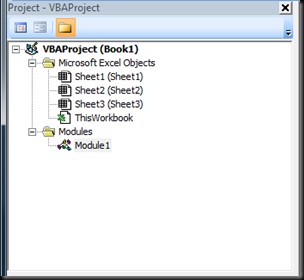 The Project Explorer displays all of the workbooks currently open in Excel (including Add-Ins and hidden workbooks). A tree diagram is used to display the objects under each project (worksheets, userforms, modules and class modules). Modules contain the macro code. Class Modules are covered in another blog post which can be found here.
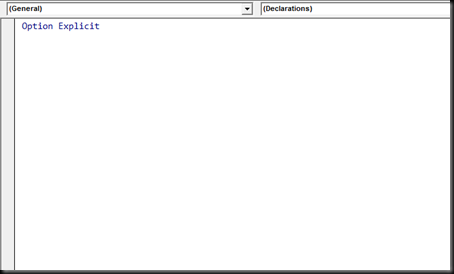 The code window is where the macro code is written / displayed. All of the objects in your project will have an associated Code window. To open them double-click the object in the Project Explorer window to bring up the Code Window. For example, to view the Code window for the Sheet1 object, double-click Sheet1 in the Project Explorer window. Unless you’ve added some VBA macro code, the Code window will be empty.
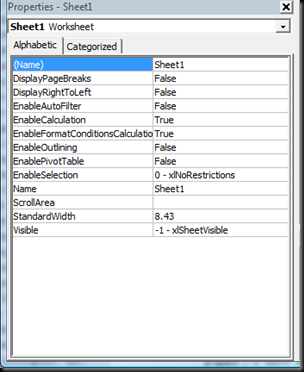 The properties window allows you to amend the properties for all of the objects in your project. The example above is for a Sheet1, it is more commonly used to edit the properties of userforms and controls (buttons, list boxes, combo boxes etc). For the worksheet above you can change the visible property, disable cell selection etc.
Programming with VBA in Excel means that you can instruct Excel to automatically do things that you would normally do manually — saving you time.
This blog post will concentrate on the Visual basic Editor (VBE). The VBE is the tool you will use to write your VBA macro code and create userforms. Macro code is the instructions you are giving to Excel to follow, userforms are what you use to allow the user to interact with the macro.
Below are some screen shots of the VBE and notes to explain what each of the sections are for. You can open the VBE by pressing Alt+F11 (this will switch between the VBE and Excel). In Excel 97 through 2003 you can also use the command bar menu; Tools-Macro-Visual Basic Editor. In Excel 2007 you will need the ‘Developer’ ribbon turned on, and press the ‘Visual Basic’ button.
The VBE (Visual Basic Editor)

The Project Explorer
 The Project Explorer displays all of the workbooks currently open in Excel (including Add-Ins and hidden workbooks). A tree diagram is used to display the objects under each project (worksheets, userforms, modules and class modules). Modules contain the macro code. Class Modules are covered in another blog post which can be found here.
The Code Window
 The code window is where the macro code is written / displayed. All of the objects in your project will have an associated Code window. To open them double-click the object in the Project Explorer window to bring up the Code Window. For example, to view the Code window for the Sheet1 object, double-click Sheet1 in the Project Explorer window. Unless you’ve added some VBA macro code, the Code window will be empty.
The Properties Window
 The properties window allows you to amend the properties for all of the objects in your project. The example above is for a Sheet1, it is more commonly used to edit the properties of userforms and controls (buttons, list boxes, combo boxes etc). For the worksheet above you can change the visible property, disable cell selection etc.
Subscribe to:
Posts (Atom)

