Monday, 27 September 2010

Using VBA to get a File’s Last Modified Date

It is sometimes useful to know the date and time a file was last modified.  this is particularly useful if you have a folder full of similar files and need to use the latest copy.

Today the code I’m going to share below enables you to pass a file address into a function which will return the date and time it was last saved.  The example below passes a file address to the function, which returns the modified date, this is then displayed in a message box.

The function requires a reference to Microsoft Scripting Runtime within the VBE.

Sub MyMacroRoutine()
    Dim ModDate As Date
    ModDate = FileLastModDate("C:\YourFileAddressGoesHere")
    MsgBox ModDate
End Sub

Function FileLastModDate(strFileAddress As String) As Date
' In the VBE, set a reference to Microsoft Scripting runtime

    Dim fso As Scripting.FileSystemObject
    Dim fsof As Scripting.File
    Dim strPath As String

    Set fso = New FileSystemObject
    strPath = strFileAddress
    Set fsof = fso.GetFile(strPath)
    With fsof
        FileLastModDate = .DateLastModified
    End With

    Set fso = Nothing
    Set fsof = Nothing

End Function

As always, if you have any questions do let us know via the comments section.

Wednesday, 22 September 2010

Outlook Email using VBA

The code I’m sharing with you today will enable you to send an email using VBA through  Outlook.  It uses early binding so you will need to use a reference to Outlook.  You may need to look into what version(s) Outlook will be available to your users. 

As well as the subject and message body the routine allows you to specify the To, Cc and Bcc fields within a standard email format. 

The example below shows the code to attach four files using four different formats: Insert the file, insert a shortcut to the file, Embed and OLE.

The code could easily be changed to loop through arrays or collections of values for many of these fields.

Sub SendAnEmailWithOutlook()
'-- Requires a reference to the Microsoft Outlook 8.0 Object Library or higher --

    ' Creates and sends a new e-mail message with Outlook
    Dim OLF As Outlook.MAPIFolder, olMailItem As Outlook.MailItem
    Dim ToContact As Outlook.Recipient

    Set OLF = GetObject("", "Outlook.Application").GetNamespace("MAPI").GetDefaultFolder(olFolderInbox)
    Set olMailItem = OLF.Items.Add ' creates a new e-mail message
    With olMailItem
        ' message subject
        .Subject = "This where the subject text goes..."

        ' add a recipient
        Set ToContact = .Recipients.Add("name@org.net")
        ' add another recipient
        Set ToContact = .Recipients.Add("name@org.net")
        ' set latest recipient as CC
        ToContact.Type = olCC
        ' add another recipient
        Set ToContact = .Recipients.Add("name@org.net")
        ' set latest recipient as BCC
        ToContact.Type = olBCC

        ' the message text with a line break
        .Body = "email message"

        ' insert attachment
        .Attachments.Add "C:\FolderName\Filename.txt", olByValue, , "filename goes here"
        ' insert shortcut
        .Attachments.Add "C:\FolderName\Filename.txt", olByReference, , "Shortcut to Attachment"
        ' embedded attachment
        .Attachments.Add "C:\FolderName\Filename.txt", olEmbeddeditem, , "Embedded Attachment"
        ' OLE attachment
        .Attachments.Add "C:\FolderName\Filename.txt", olOLE, , "OLE Attachment"

        .OriginatorDeliveryReportRequested = False ' True would be delivery confirmation
        .ReadReceiptRequested = False ' True would be read confirmation
        '.Save      ' saves the message for later editing
        '.Display   ' displays the email message for editing
        .Send       ' sends the e-mail message (puts it in the Outbox)

    End With

    Set ToContact = Nothing
    Set olMailItem = Nothing
    Set OLF = Nothing

End Sub

Hope the text wrapping doesn’t make it too awkward to read.
As always, if you have any questions do let us know via the comments section.

Edit (18-Dec-2010): Due to a ‘technical’ error this blog entry has changed from it’s original version.  The original explained how to send an email through Outlook using late binding, this post will be re-written and posted again soon.  Apologies for any inconvenience this may cause.

Saturday, 21 August 2010

An introduction to Excel VBA (Macros)

The purpose of my next few blog posts will be to go over the basics of the Visual Basic for Applications (VBA) programming language that comes within the Microsoft Office suite.  VBA is a programming language aimed at ‘normal’ people, it’s written in a style similar to normal written English. 
Programming with VBA in Excel means that you can instruct Excel to automatically do things that you would normally do manually — saving you time.
This blog post will concentrate on the Visual basic Editor (VBE). The VBE is the tool you will use to write your VBA macro code and create userforms.  Macro code is the instructions you are giving to Excel to follow, userforms are what you use to allow the user to interact with the macro.
Below are some screen shots of the VBE and notes to explain what each of the sections are for.  You can open the VBE by pressing Alt+F11 (this will switch between the VBE and Excel).  In Excel 97 through 2003 you can also use the command bar menu; Tools-Macro-Visual Basic Editor.  In Excel 2007 you will need the ‘Developer’ ribbon turned on, and press the ‘Visual Basic’ button.

The VBE (Visual Basic Editor)

Visual basic Editor

The Project Explorer

VBE Project ExplorerThe Project Explorer displays all of the workbooks currently open in Excel (including Add-Ins and hidden workbooks).  A tree diagram is used to display the objects under each project (worksheets, userforms, modules and class modules).  Modules contain the macro code.  Class Modules are covered in another blog post which can be found here.

The Code Window

VBE Code Window The code window is where the macro code is written / displayed.  All of the objects in your project will have an associated Code window.  To open them double-click the object in the Project Explorer window to bring up the Code Window. For example, to view the Code window for the Sheet1 object, double-click Sheet1 in the Project Explorer window. Unless you’ve added some VBA macro code, the Code window will be empty.

The Properties Window

VBE Object PropertiesThe properties window allows you to amend the properties for all of the objects in your project.  The example above is for a Sheet1, it is more commonly used to edit the properties of userforms and controls (buttons, list boxes, combo boxes etc).  For the worksheet above you can change the visible property, disable cell selection etc.

Friday, 20 August 2010

Excel 2007 Developer Ribbon

To do any sort of VBA coding within Microsoft Excel 2007 it will prove useful to turn on the Developer Ribbon.  You can use Alt+F11 to switch between the VBE and Excel, but having the Developer Ribbon turned on will make life easier.  The Developer Ribbon is like the Visual basic toolbar in Excel 97 through 2003.

To turn on the Developer Ribbon you will need to click the Office button Excel_Office_Button , then select Excel Options, bottom right of the menu.  Within the ‘Popular’ category select the ‘Show Developer tab in the Ribbon’.

Enable Developer Ribbon Once this is checked you will see the following controls now available within Excel.

Developer Ribbon Buttons

Wednesday, 21 July 2010

[SetupFunctionIDs] [PickPlatform]...?

A company I work for has recently upgrade from MS Office 97 to MS Office 2003.  Yes, I’m aware that even with this upgrade they’ve still moved to a package which Microsoft withdrew support for in 2009.

Anyways, since the upgrade a few of the more advanced users have noticed that every time they open the VBE (Visual Basic Editor) some code is already present in the Immediate Window:

[auto_open] <
[SetupFunctionIDs] <
[SetupFunctionIDs] >
[PickPlatform] <
[PickPlatform] >
[VerifyOpen] <
[VerifyOpen] > 1
[RegisterFunctionIDs] <
[RegisterFunctionIDs] >
[auto_open] >

I had to do a little searching to remind myself about this and came across a thread on the MrExcel message boards.  The general gist is that it appears if you are using the

(atpvbaen.xla) add-in.  It appears that it is a Microsoft error, apparently it was part of their debugging method to see which routines were running and which weren't (< means starting the sub, and the > means exiting it).

Thursday, 17 June 2010

Playing a sound file using VBA

I recently received a request from a client to add a specific sound when displaying a message box warning.  I knew I’d done this before, and from memory knew it was fairly simple.  So, after ploughing through some old code I came across the code I have put below.  I hope it proves useful to you.

The code uses a call to an API, below.  The API code needs to be copied and pasted to the top of your module code.

' This is required to play a .wav sound with VBA
Public Declare Function sndPlaySound32 _
    Lib "winmm.dll" _
    Alias "sndPlaySoundA" ( _
        ByVal lpszSoundName As String, _
        ByVal uFlags As Long) As Long

Below is the routine which plays the sound, this can be placed in a utilities module and called by various routines, each passing in the name of the sound file you want to be played.

Windows has a folder full of .wav files, they can be found here; C:\Windows\Media.  The routine below allows you to pass in the full file path of a music file, or just the filename.  If you pass in a filename the routine assumes you want to play a Windows default sound and guesses the file path.

Public Sub PlaySound(ByVal SoundFileName As String)
    If Dir(SoundFileName, vbNormal) = "" Then
        ' SoundFileName is not a file. Get the file named by
        ' SoundFileName from the Windows\Media directory.
        SoundFileName = Environ("SystemRoot") & "\Media\" & SoundFileName
        If InStr(1, SoundFileName , ".") = 0 Then
            ' If SoundFileName does not have a .wav extension, add one.
            SoundFileName = SoundFileName & ".wav"
        End If
        If Dir(SoundFileName, vbNormal) = vbNullString Then
            ' Can't find the file. Just use a beep.
            Beep
            Exit Sub
        End If
    Else
        ' SoundFileName is a file, Use it.
    End If
    ' Play the sound, before continuing code
    sndPlaySound32 SoundFileName, 0&
    ' Play sound and continue code.
    sndPlaySound32 SoundFileName, 1&)
End Sub

I have included two lines at the bottom of the code, you can comment out which-ever you choose not to use.  The first plays the sound before allowing the code to continue, the second plays the code and allows the code to continue.  This means you can play a specific sound as you display a message box for example.  Have a play, see which way suits you best.

As always, if you have any questions do let us know via the comments section.

Thursday, 3 June 2010

Do… Loop and For… Next in VBA

Loop statements are used to get Excel to repeat a piece of code a certain number of times. The number of times the code gets repeated can be specified as a fixed number (e.g. do this 10 times), or as a variable (e.g. do this until there are no more rows of data).

The are several ways in which loops can be constructed, depending on the circumstances in which they are going to be used.  Quite often the wanted result can be obtained in different ways, depending on your preferences.

There are two basic kinds of loops, examples of both: Do…Loop and For…Next loops. The code to be repeated is placed between the key words.
ExamplePic1

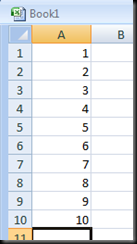
For our first example open a new workbook and place the numbers 1 to 10 in cells A1 through to A10. 

We are going to loop down the list, adding 5 to the number in column ‘A’.

Now open the VBE, add a new module and start a new sub routine call MyLoopStatement.  Copy the code below into your new routine.

Public Sub MyLoopStatement()
    Range("A1").Select 

    Do While IsEmpty(ActiveCell) = False 
        ActiveCell.Offset(0, 1).FormulaR1C1 = "=SUM(RC[-1]+5)" 
        ActiveCell.Offset(1, 0).Select  LoopStatement2
    Loop
End Sub 


This routine loops down the list placing a formula in each of the cells to the right of the  activecell.  It will continue WHILE the active cell is not empty.

The next example uses Do until.

    Range("A1").Select 
    Do
        ActiveCell.Offset(0, 1).FormulaR1C1 = "=SUM(RC[-1]+5)"
        ActiveCell.Offset(1, 0).Select
    Loop Until IsEmpty(ActiveCell)

This example loops until it finds a blank cell.  It is generally considered better practise to use Do Until, rather then Do While.  Both of the above examples runs the code within the loop at least once before testing whether to move on.  You could write the same Do Until / Do While loops in the following way. 

    Range("A1").Select
    Do Until IsEmpty(ActiveCell)
        ActiveCell.Offset(0, 1).FormulaR1C1 = "=SUM(RC[-1]+5)"
        ActiveCell.Offset(1, 0).Select
    Loop

Moving the test to the start of the loop means it is carried out before carrying out any of the instructions within the loop.  This could be useful if, for example, sometimes cells A1:A10 were blank.

if you know or can use VBA to find out how many times you want to repeat the code you can use a For… Next loop.

In the following example we know that we have 10 rows of data, so we can tell the code to loop 10 times.

    Dim l As Long
    Dim lRowCount As Long

    lRowCount = Range("A1").CurrentRegion.Rows.Count - 1
    ' You could also try
    ' lRowCount = Cells.SpecialCells(xlCellTypeLastCell).Row

    For l = 1 To lRowCount
        ActiveCell.Offset(0, 1).FormulaR1C1 = "=SUM(RC[-1]+5)"
        ActiveCell.Offset(1, 0).Select
    Next l

For… Next loops are particularly good a looping through objects.

    Dim wb As Workbook
    Dim ws As Worksheet

    Set wb = ThisWorkbook

    For Each ws In wb.Worksheets
        Debug.Print ws.Name
    Next ws

The above code would be quicker then:

    Dim l As Long
    Dim wb As Workbook

    Set wb = ThisWorkbook

    For l = 1 To wb.Worksheets.Count
        Debug.Print wb.Worksheets(l).Name
    Next l

As always, I hope the above examples have been helpful.  If you have any questions or comments please do let us know.